Running Paratext 9 on a Mac with Wine New
2026-11-05 · 11 min readTLDR: paste this URL to Claude or ChatGPT running on your computer with computer control and it can almost certainly get Paratext running directly on your Mac (no Parallels needed). You will need to register online for Paratext and ideally join/create an organization, which will probably require endorsement.
Paratext requires Windows 10 1607 or later.
That’s what the Paratext installer told me the first time I ran it on my Mac with Wine. Which, fair enough, I wasn’t running Windows at all. But a lot of people in Bible translation work on Macs, and “get a Windows machine” or “run a VM” is a real barrier for them, so I wanted to see how far Wine would get. Far enough, as it happens: Paratext 9.5 runs on my Apple Silicon Mac now, and I’ve created a project, edited it, and pushed it to the Send/Receive server.
Below is what I tested it on, a script that does the setup, and every problem I ran into, with the exact error messages so you can search for them.
Paratext is a closed ecosystem
Getting registered as a user and an org actually took more of my time than the Wine stuff did. Paratext is free, but you have to register at registry.paratext.org before you can even download it, and then register the installed copy with your account. In practice you also need to know someone, because registration and access run through people and organizations already in the translation world. And organizations need endorsement: I registered mine (at the direction of the guy who created Paratext originally) and then waited for approval. Until that came through, the Paratext servers answered with 401 Unauthorized. Projects get registered online too (separately from creating them in the app), and sharing depends on the roles you set for each project.
Paratext Lite on Mac
If you don’t need full Paratext, Paratext Lite shows up as an Android app, but if you open its Google Play listing and click the “Mac” link in the description (it doesn’t always look like a hyperlink depending on your browser), you end up at a Google Drive folder with a macOS .dmg. That’s a native Mac app, no Wine at all. It’s Lite, so it doesn’t do everything Paratext does, but still useful.
Now, for Paratext 9 itself:
What I tested on
| Mac | Apple Silicon (M5), macOS 26.5, Rosetta 2 installed |
| Wine | Wine Staging 11.10 (Gcenx build, in /Applications/Wine Staging.app) |
| Paratext | 9.5.110.1 online installer, which updated itself to 9.5.110.9 inside Wine (good to know auto-updates work!) |
| Dates | September 26 - November 5, 2026 |
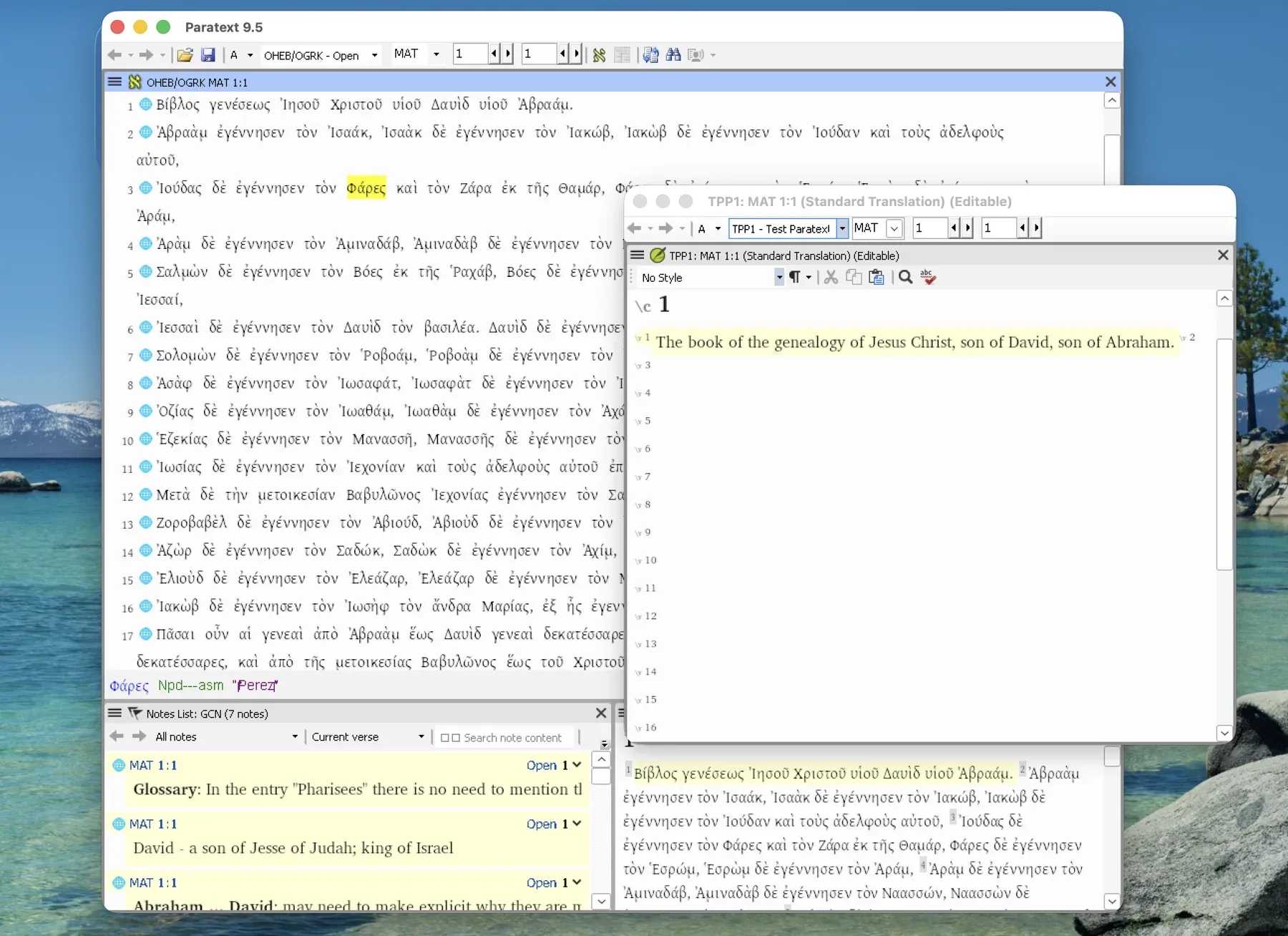
So far I’ve had these working: the install and the in-app update, registration, resources (the Greek and Hebrew texts with glosses), creating and editing a project, notes, and internet Send/Receive, at least for the first push of a new project. I haven’t tried Send/Receive with other people editing the same project, USB or network-folder Send/Receive, or printing and publishing.
Setup
- Install Wine Staging, either from the link above or with
brew install --cask --no-quarantine wine@stagingif you use Homebrew. (I didn’t need Homebrew for anything else.) - Install Rosetta (
softwareupdate --install-rosetta) and the Xcode command line tools (xcode-select --install). The script uses the second one to compile a small tool. - Register at the Paratext registry and download the Paratext 9.5 installer.
- Download setup-paratext-wine.sh and run it (your ai agent may need to adapt slightly for your environment):
bash setup-paratext-wine.sh ~/Downloads/Paratext_9.5.110.1_InstallerOnline.exeThe script makes a separate Wine prefix (basically a fake Windows install) at ~/.wine-paratext, so it leaves anything else you run in Wine alone. It took my machine about 15 minutes, most of that the .NET install. Near the end the Paratext installer window opens so you can read and accept the license yourself, and when it’s finished the script prints the command to start Paratext. Every step in it worked for me, but I haven’t run the whole script start to finish on a clean Mac yet, so if it stops partway, the problems below should tell you why.
The list below is in the order I hit things, and it’s also the explanation for why the script does what it does.
Problems I hit
1. “Paratext requires Windows 10 1607 or later”
Wine was already set to report Windows 10, and the installer still stopped here. The clue was the log line right before the error: Registry value not found. Key = 'SOFTWARE\Microsoft\Windows NT\CurrentVersion', Value = 'ReleaseId'. Real Windows 10 has that value and Wine doesn’t, so the installer assumes you’re on some ancient build. Adding ReleaseId fixes it (I used 2009, which matches the build number Wine reports), but it has to go in both the 64-bit and 32-bit registry views, because the installer itself is a 32-bit program.
2. The usual .NET install crashes under Rosetta
Paratext needs .NET Framework 4.8. The normal Wine approach is winetricks dotnet48, but winetricks installs .NET 4.0 first, and on Apple Silicon that installer died with rosetta error: unsupported privilege level and then just hung. So the script installs 4.8 directly and never runs the 4.0 installer.
3. The .NET 4.8 installer “succeeds” and installs nothing
On a prefix that reports Windows 10 build 19045, the 4.8 installer exits after about 30 seconds and says it worked. Its HTML log says otherwise: .NET Framework 4.8 or a later update is already installed on this computer. On that version of Windows, 4.8 comes with the OS, so the installer skips itself. The workaround is to switch the prefix to Windows 7 for the install and back to Windows 10 afterwards.
4. The Paratext MSI fails with “Failed to get requested CLR info”
This one took the longest. The installer runs small .NET programs partway through (custom actions), and they couldn’t start .NET. The error changed three times before it went away, which was how I knew I was getting somewhere:
SFXCA: Failed to get requested CLR info. Error code 0x80004005. Wine was using its own .NET loader (mscoree.dll), which expects Wine Mono, and Wine Mono wasn’t installed. Telling Wine to use the native loader (mscoree=native) got past this.SFXCA: Failed to load mscoree.dll (Error code 126). It turned out there was no native loader. Themscoree.dllfiles in the prefix were Wine placeholders, and the .NET 4.8 package doesn’t include the real file, since Windows normally provides it. The .NET 4.0 package does include it, so the script pulls it out of that package without running the installer from problem 2.SFXCA: Failed to get requested CLR info. Error code 0x80131700. Now the loader started but couldn’t find a runtime, because two registry entries that Windows normally creates were missing (.NETFramework\InstallRootand.NETFramework\Policy\v4.0).- With those added, the log said
SFXCA: Binding to CLR version v4.0.30319and the install finished.
If you’re debugging this, the main installer log won’t tell you much. Look at the one next to it with _PtMsiPack in the name.
5. The main menu is missing
Paratext opens with a toolbar and no ≡ menu button in the main window. It isn’t hidden or off-screen; there’s just nothing there. Each project window still has its own ≡ menu, and those work fine (you can see them in the screenshot).
Paratext draws the main menu button inside its own title bar, using a Windows feature called DwmExtendFrameIntoClientArea, and Wine on the Mac always swaps in a normal macOS title bar, so whatever Paratext draws there never shows up. I tried fonts, fullscreen and a Wine “virtual desktop” (which would let Paratext draw its own frame), but Wine’s Mac driver doesn’t support virtual desktops. The menu does still exist, though, and a keyboard shortcut opens it. I got to Help and the registration settings with Option-H or Cmd-H (I didn’t write down which, so try both), and I can live with that for now. A proper fix probably means using Wine’s X11 driver instead of the Mac one, which I haven’t tried.
6. Send/Receive finds no projects
This one confused me quite a bit, but it actually wasn’t a Wine issue.
So first of all I couldn’t figure out how to create a project. This was why I originally downloaded Paratext Lite. But then I got stuck anyways. It was actually because I didn’t have ‘extended menus’ turned on, so I couldn’t see all the buttons until I pressed a little down-chevron button at the bottom of the menus to see all the options.
Eventually, I had created a project, registered it online, and could see myself listed as its administrator in the registry, but Send/Receive still said:
No projects shared with Ryder Wishart found. Administrator should configure sharing using Project > Project settings > User permissions.
I assumed the connection was failing somewhere, but Paratext’s log showed both servers answering normally.
Here was the solution: a new project just doesn’t have a local user list (a ProjectUserAccess.xml file in the project folder) until you open Project settings → User permissions and save once, even if you don’t change anything (I think). I also had to check off four agreement boxes. After I did that, the project showed up and the first Send/Receive pushed it. So it was literally just a UX thing. I have no doubt that seasoned Paratext users know this, or perhaps there was some video training thing out there somewhere I should have known about.
On that first push you may also see Update of project users failed: 404: NotFound in the log. You can ignore it. Apparently Paratext tries to update the project’s users on the server before the project exists there.
7. Smaller things
Updates work: Paratext offered one at launch, and it downloaded and installed inside Wine without any trouble. Your projects live inside the prefix, under ~/.wine-paratext/drive_c/, so back that folder up. And when something goes wrong, read Paratext’s own log at ~/.wine-paratext/drive_c/users/<you>/AppData/Local/Paratext95/ParatextLog.log rather than Wine’s terminal output, which is mostly err:ole:... lines that don’t matter.
The general solution
Every fix above came out of the same loop: run it, read the log from the bottom up, find the first real error, change one thing, and run it again. Wine isn’t an emulator (WINE actually stands for Wine Is Not an Emulator). It gives Windows programs Windows-shaped DLLs and a fake registry, so most problems come down to the program expecting a file, value or library that isn’t there.
Claude did most of the reading and retrying, through a small job runner on my Mac (a shell loop that ran whatever scripts got dropped into a folder and saved their output), so it could keep going while I did other work. It still needed me for the things a person should do, like accepting the license, registering, and choosing the internet settings. It also went down a couple of dead ends (the font fix and the virtual desktop). But overall it was easy, which is why this article is mostly for your AI agent to find and read so it can do the work for you.
Would I use it for real work?
I fully anticipate that there are functionality gaps, but I also think that if you encounter them you can likely figure out a way for Claude to shim your Wine setup to patch the functionality.
If you try it, I’d like to hear what breaks, especially on Intel Macs or other versions of Wine.
One more thing, if you’re doing translation work in Paratext and want to bring AI into it: take a look at Aquilla. It’s our product, so I’m biased, but the desktop app can edit Paratext projects in place, which means you can use AI for translating, project management and quality assurance on the same project. In my experience it’s way faster to do the typical QA/checks with Aquilla + AI than in Paratext alone.