#mac

3 notes

Originally posted: 2022-03-31

Mac ‘Other’ storage keeps increasing to over 100GB? Use a graphical storage breakdown. (1 min read)

The Problem: Other Storage Taking up Too Much Space

When your disk is almost full, and you need to “save space by optimizing storage,” there is nothing more frustrating than seeing an “Other” category in Mac’s Storage Management tool that is hogging the lion’s share of your SSD.

Here’s the fix:

Solution: Use GrandPerspective to Identify Which Files/Folders Are Taking up so Much Space

  1. Download Grand Perspective from Sourceforge (it’s 4 MB, so you will have to have at least that much storage!).

  2. Copy the GrandPerspective app into your ~/Applications/ folder.

You need to open GrandPerspective with permission to read the size of every file in every folder. To open it in this way, do the following:

  1. Open Terminal (how to do this).

  2. In Terminal paste this command: security execute-with-privileges /A*/GrandPerspective.app/*/M*/* 2>&-

You will be prompted to enter your password, to allow GrandPerspective to see every file on your computer. See Note

GrandPerspective will show you where and how you are using up your space.

Get this: I had 64GB of my 256GB allocated to a Docker image I wasn’t even using anymore.

Deleting it meant I could actually save my dissertation file changes. 🎉 🔥 ⚡️
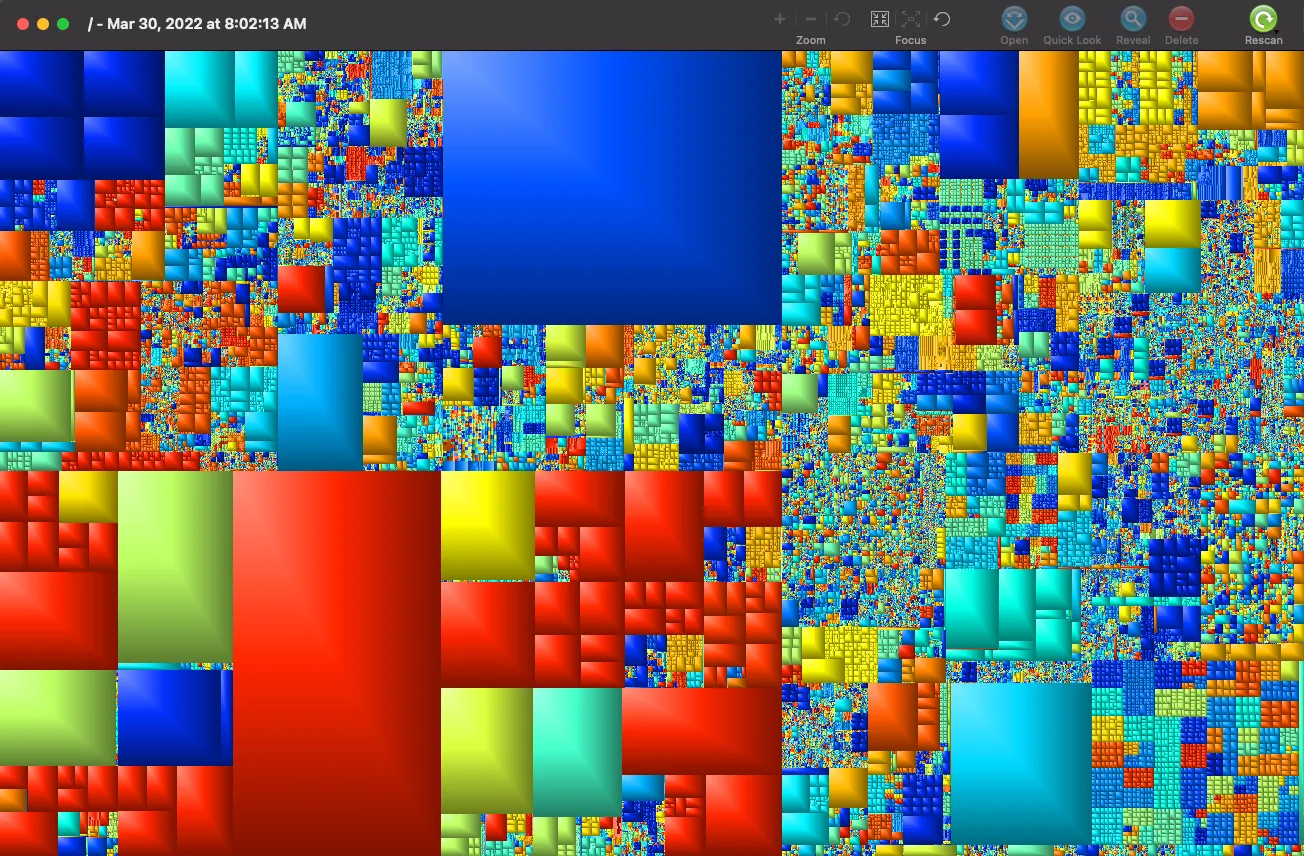
Graphical breakdown of my hard drive storage usage

Credits

Thanks to Link Davis, on this thread for putting me on to the GrandPerspective app and the technique of running it with increased permissions.

NOTE: Obviously, if you have government secrets on your computer, you already know that you shouldn’t give some app downloaded off the internet access to all your files. For most of us, however, we’re simply interested in freeing up storage.

Permalink →

Originally posted: 2023-05-17

A simple solution for a common problem when your pip environment is all messed up on Mac M1 machines.

Problem

If you are using a Mac M1 machine and trying to install some Python libraries using pip, you may encounter this error:

ImportError: dlopen (/Users/.../site-packages/.../...so, 0x0002): tried: '/Users/.../site-packages/.../...so' (mach-o file, but is an incompatible architecture (have 'arm64', need 'x86_64'))

This means that the library you are trying to import was compiled for a different architecture than your machine. In this case, the library was built for x86_64 (Intel) and your machine is arm64 (Apple Silicon).

This is annoying because you can very specifically make sure the arm64 version is installed and still get this error on certain dependencies, AND it doesn’t show up until you try to call the code. Boo!

Solution

One possible solution is to install the library directly from GitHub using pip. For example, if you are having trouble with hnswlib, you can try this:

git clone https://github.com/nmslib/hnswlib.git
cd hnswlib
pip install .

This will clone the repository and install it from source, which should compile it for your machine’s architecture. You can do this for any library that has a GitHub repository and a setup.py file. (Because, obviously, as you try to fix your environment issues you will inevitably create more issues.)

As a second example, for the library lxml, you can try:

git clone https://github.com/lxml/lxml.git     
cd lxml   
pip install .

Conclusion

I hope this helps you solve this annoying error and enjoy using Python on your Mac M1 machine. Happy coding! 😊

Permalink →

Originally posted: 2021-04-27

Command not found? Here’s the fix

Problem

When you try to commit files in Tower, you can run into issues if you have Husky pre-commit hooks installed in your project but not globally on your machine.

Solution

If you don’t want to install Husky globally, you can do the following:

Go to your home directory (wherever your .bashrc file is located, for example), and create a new file called .huskyrc.

Inside .huskyrc, write this:

PATH="/usr/local/bin:$PATH"

This should help Tower use Husky to run some pre-commit type-checking, or whatever it is you want to do!

Permalink →